> ## Documentation Index
> Fetch the complete documentation index at: https://smartac-justin-client-exports.mintlify.site/llms.txt
> Use this file to discover all available pages before exploring further.
# Google Analytics 4
> 将 Google Analytics 4 集成到你的 Mintlify 文档,通过 GA4 ID 跟踪访客行为、页面浏览量和内容参与情况。
你需要创建一个新的GA4资源以供 Mintlify 使用。收集的数据归入与你其他 Google Analytics 数据相同的项目。
如果你仍在使用旧版 Google Analytics(Universal Analytics),依然可以创建GA4资源。GA4数据与 UA 数据略有差异,但都会汇集到同一个项目中。
## 将 GA4 接入 Mintlify
### 创建 Web 流
你需要创建一个 Web 流以获取 Measurement ID,并将其填入 Mintlify。
点击 Google Analytics 界面左下角的齿轮图标,然后点击 Data Streams。
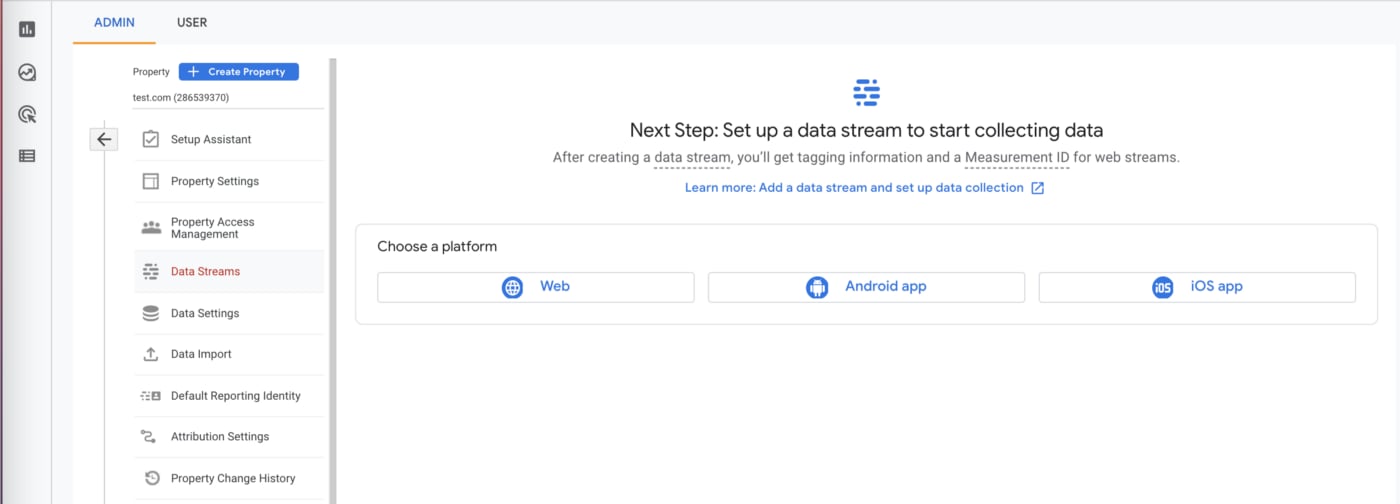 创建一个 Web 流,并将你的 Mintlify 文档站点的 URL 作为流的 URL。
你的 Measurement ID 类似于 `G-XXXXXXX`,创建 Web 流后会立即出现在 Stream Details 下方。
创建一个 Web 流,并将你的 Mintlify 文档站点的 URL 作为流的 URL。
你的 Measurement ID 类似于 `G-XXXXXXX`,创建 Web 流后会立即出现在 Stream Details 下方。
### 在 docs.json 中添加 Measurement ID
将你的 Measurement ID 添加到 `docs.json` 文件中,如下所示:
```json docs.json theme={null}
"integrations": {
"ga4": {
"measurementId": "G-XXXXXXX"
}
}
```
### 请稍候
Google Analytics 通常需要两到三天才会显示你的数据。
你可以使用 [Google Analytics Debugger](https://chrome.google.com/webstore/detail/google-analytics-debugger/jnkmfdileelhofjcijamephohjechhna?hl=en) 检查你的 Analytics 配置。每当 GA4 发出请求时,该扩展都会在你的浏览器控制台中记录日志。
预览链接的 Analytics 已禁用。